Figma alternatives for teams whose product is already built
By Andrea Buttarelli, founder of Feega · checked 2026-11-18 · how we checked
Keep Figma if you design new product UI with a shared library and handoff. It is still the best at that. This page is for teams whose design and code have drifted apart.
Figma and Feega at a glance
| Figma | Feega | |
|---|---|---|
| Starts from | A blank frame or a shared library | The project you already run |
| What you edit | A design file | The real page, with your own components |
| How it reaches code | Handoff, then a developer rebuilds it | It is already in the source file |
| Code access | Dev Mode reads code through MCP; Make local is a closed beta on the Mac app | Edits your repo directly |
| Team collaboration | Strong, built in | Not yet; no shared editing |
| Cost | Paid plans per seat | Free, Apache-2.0 |
| Uses AI | Optional features | No, no tokens |
the drift problem
Every team that designs in Figma and builds in code ends up with two versions of the truth. The file says one thing, the page says another, and nobody remembers which change happened first.
Feega removes one of the two copies from the equation for the work you do on shipped pages. You edit the running app, so the source file is the only version there is.
- Redraw the live page
- Change it in the file
- Write a spec
- A developer rebuilds it
- Open the live page
- Click what needs to change
- Set the value
- Review the diff
your components, not a lookalike
A design system in Figma is a picture of components. A design system in your repo is the components themselves, with their real props, real states and real CSS. Feega works on the second one.
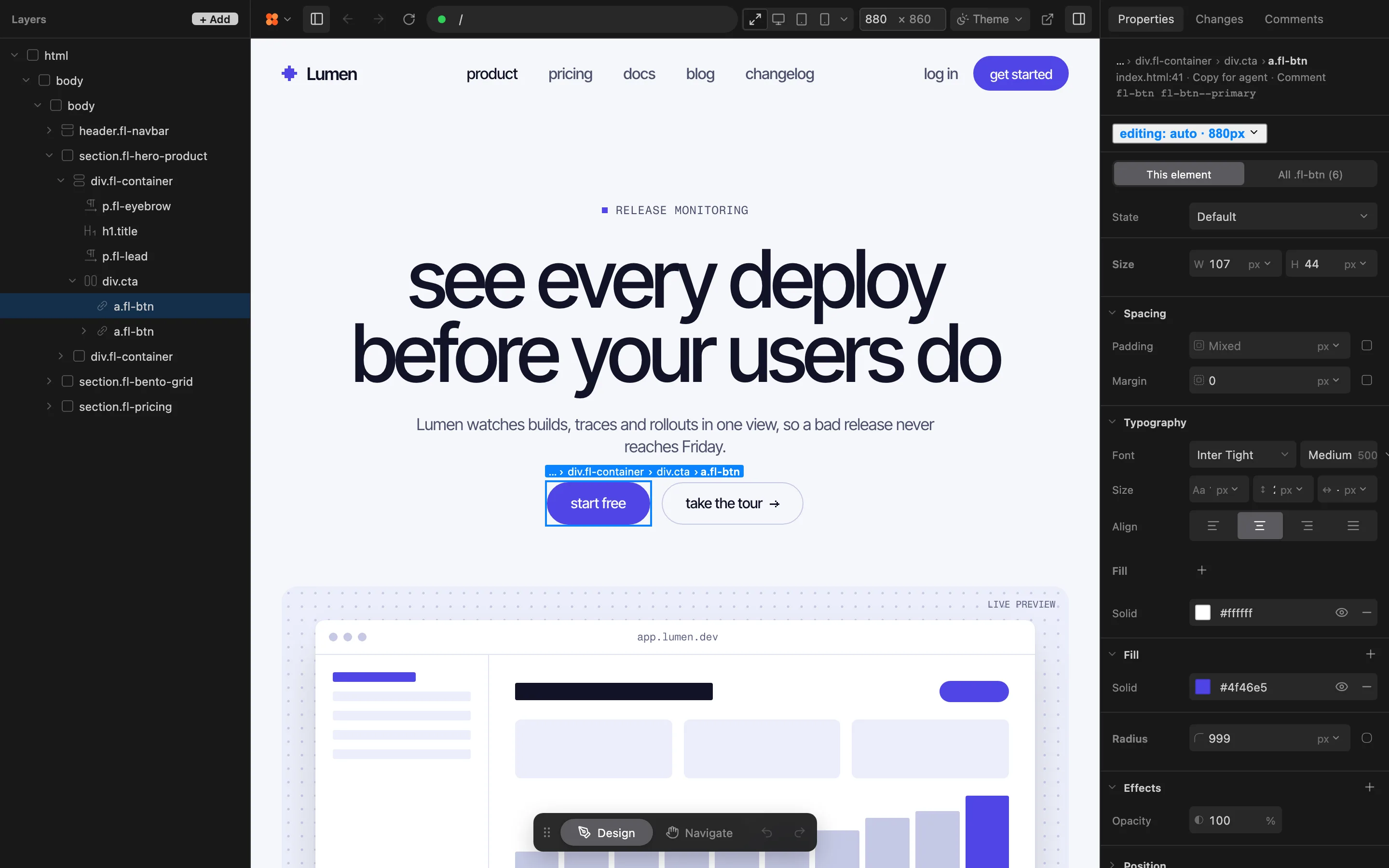
Click a button in the running page and you are changing the actual element, whatever it is built from. That matters when a tweak must respect the system rather than approximate it.
every change is a diff you can read
A reviewer cannot comment on a pixel move in a design file the way they can on a line of code. In Feega, each edit shows up in Changes as a diff against your source, which you keep or undo before anything is committed.
That makes it easy to bring a designer into a code review without asking them to learn git. They make the edit; the developer reads the diff.
  .cta {
-   padding: 12px 20px;
+   padding: 14px 24px;
    border-radius: 6px;
  }
Figma is moving toward code too
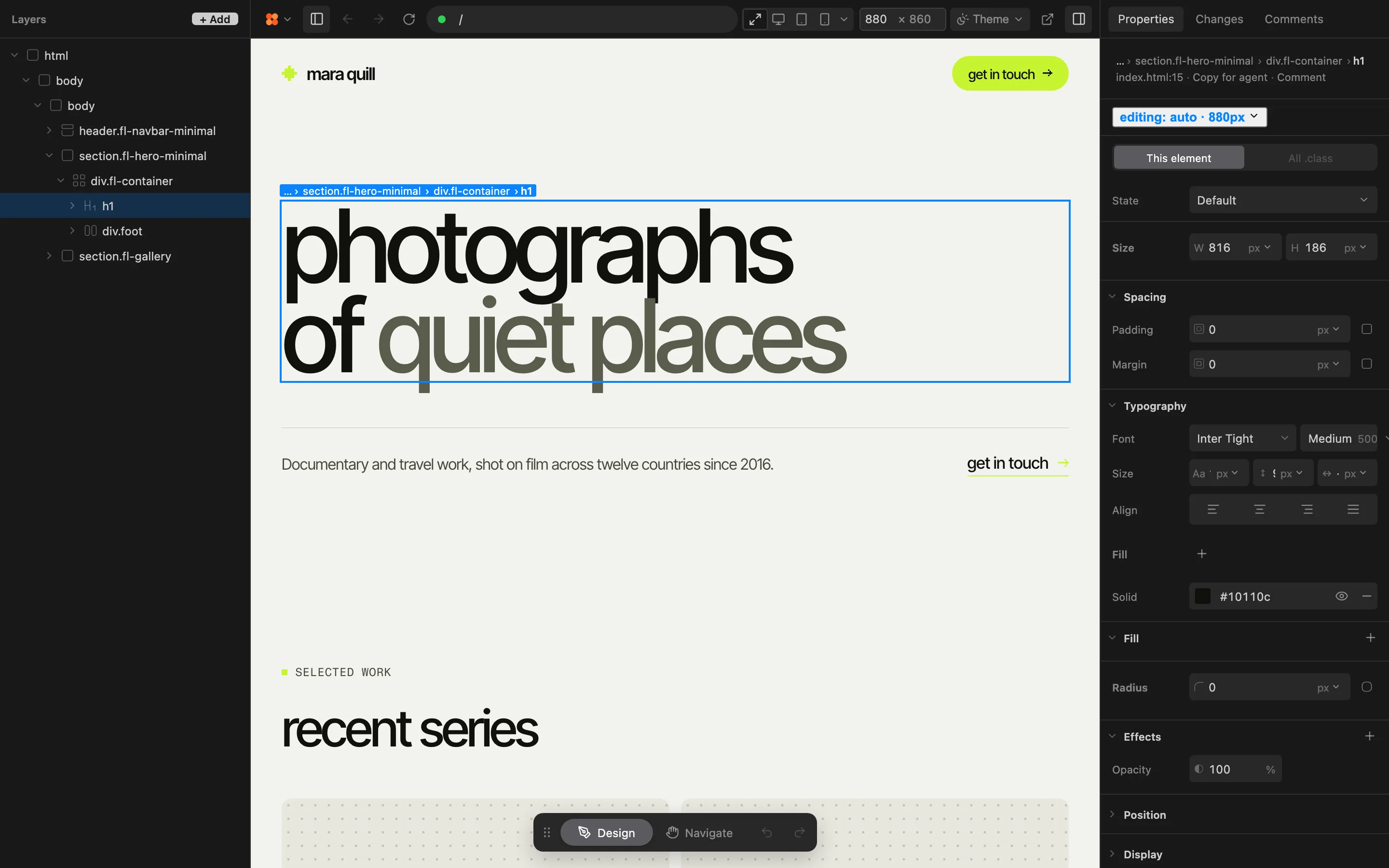
Make can open a local folder or a GitHub clone, but per Figma’s help page as we read it, only in a closed beta on the Mac desktop app. Dev Mode reads code through its MCP server and does not edit your repo.
If that beta reaches your team and fits how you work, it is worth a look. Today, Feega is the one you can install in a minute on any operating system.
when to choose which
choose Figma if
- You start from a blank frame.
- A large team shares one design system.
- Developers are happy to rebuild from specs.
choose Feega if
- The product exists.
- You want to edit real pages with your own components.
- The change should land in your source files.
what each one costs
Figma charges per seat on its paid plans, and for a team the cost scales with the number of designers and developers who need access to the library. Check its pricing page for the current numbers.
Feega is free, with no seat, no account and no limit. The honest cost is the missing feature: there is no shared editing yet, so two people cannot work in the same session.
try Feega on a shipped page in five steps
- InstallAdd the Feega extension in VS Code, Cursor, Windsurf or VSCodium, or run npx feega in the project folder.
- Open the projectFeega starts your dev server and shows the running page next to your layers.
- Click and changePick an element, then set its padding, colour, type or layout in the Properties bar.
- Read the diffEvery edit appears in Changes as a diff against your source. Keep it, or undo it.
- Commit as usualFeega writes files and stops there. Review and commit with the tools you already use.
mistakes people make
Replacing Figma for new UI. You do not need to. Keep designing new UI there; use Feega on what shipped.
Judging on an empty file. Try both on your own repo.
questions
Can Figma edit my codebase?
In the Make local beta, yes. It is not generally available yet.
Can Feega read my Figma file?
No. It edits the app you are running.
Should we stop using Figma?
No. If you design new screens and share a library, keep doing it there. Feega covers the edits to what has already shipped.
Is Figma Make the same thing as Feega?
Not today. Make local, as of our check, is a closed beta on the Mac desktop app. Feega is available now and is not tied to a generative model.
Can a designer use Feega without learning git?
They click and set values, and see each change as a diff. A developer can review and commit.
Which stacks does Feega support?
SvelteKit, React, Next.js, Vue, Nuxt, React Router, Astro and Vite, with CSS or Tailwind.
how we checked
We make Feega, so read our column with that in mind. We read each product's public pages on 2026-11-18 and compared what they offer, not finished work. Something wrong? Write to hi@feega.app.
Feega is not affiliated with, endorsed by, sponsored by or connected to any company or product named on this page. All product names, logos and trademarks belong to their respective owners and are used only to identify those products. Information comes from their public pages on the date shown and may have changed since; check the source before you decide. This page is not legal, financial or purchasing advice.
Keep Figma for new UI. Stop rebuilding what already shipped.
download for free →